Your Immich Backup Is Not Done Until It Restores
- Published
- 2 June 2026
- Updated
- 2 June 2026
Immich is not just a folder of pictures with a web interface. It has original files, generated thumbnails, optional encoded video, profile data, and a database that knows where things are and who they belong to.
The useful question is not whether a fresh install can show an upload screen, but whether a clean Immich instance can take your backup material and return the library. If you lose the database, the files do not magically become a working Immich library again. If you lose the files, the database has a tidy memory of assets that no longer open.
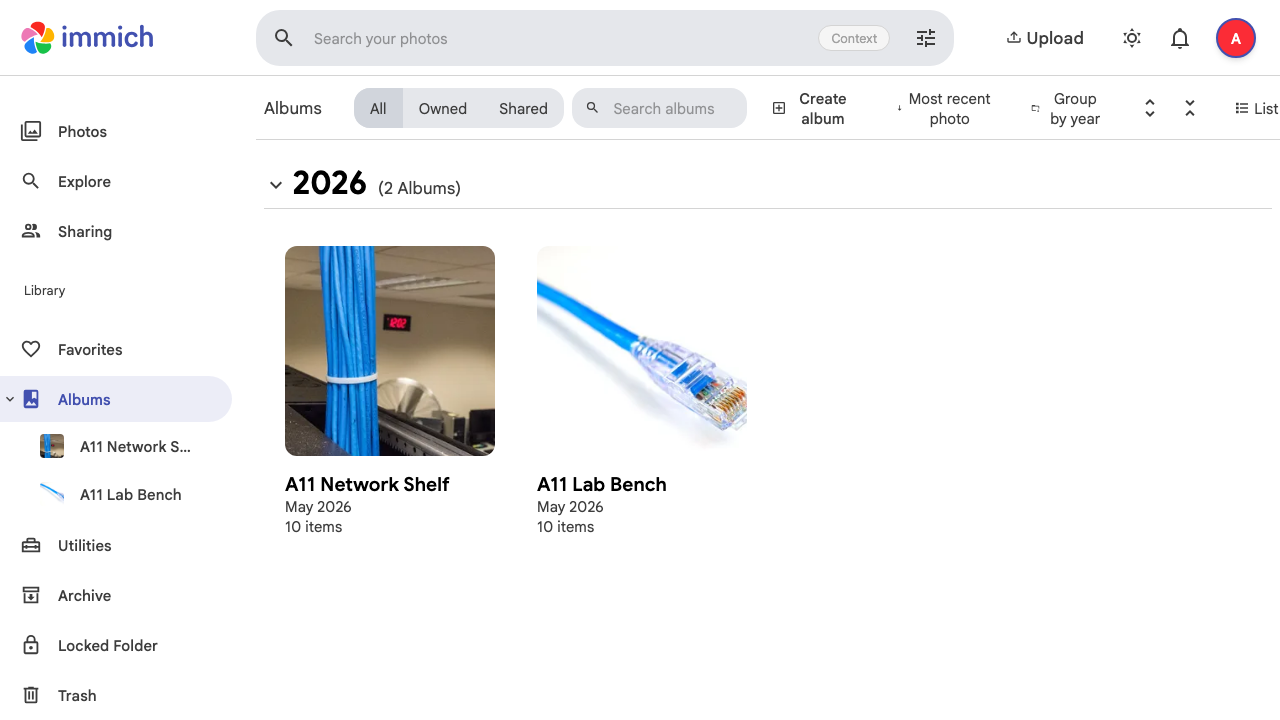
The evidence here comes from a restore drill on a disposable Debian 13.5 VM: official Docker Compose files, Immich v2.7.5, one admin user, 20 metadata-stripped still images, and two albums. The restored instance accepted the account, showed the 20 images, restored both albums with 10 assets each, and returned both an original JPEG and a preview JPEG.
The Backup Has Two Jobs
An Immich backup has to preserve two different kinds of value.
The first is the media itself: uploaded originals, profile images if used, and any generated thumbnails or encoded video you choose to keep. Those live under Immich’s upload location, which varies with features like the storage template.
The second is the application state: users, albums, metadata, asset records, file paths, and the other database-backed information that makes the service more than a file browser.
Immich’s own backup and restore documentation makes that split explicit. Checked on May 23, 2026, the docs say to keep copies of uploaded photos and videos as well as the Immich database. The automatic database backup feature is useful, but it is only a database backup. It does not contain the photos or videos. A file copy has the opposite problem: the originals exist, but the restored application no longer has the database state that made the library usable.
For a boring restore plan, treat both sides as required.
What I Backed Up
The lab used the full upload location rather than trying to be clever with a minimal folder set. That meant the backup set included:
| Component | Included in the lab backup | Why it mattered |
|---|---|---|
| Database backup | Yes | Restores users, albums, metadata, asset records, and file paths. |
UPLOAD_LOCATION/upload | Yes | Held the original still images in this storage-template-off test. |
UPLOAD_LOCATION/backups | Yes | Held the Immich database backup selected by the restore UI. |
UPLOAD_LOCATION/thumbs | Yes | Held generated previews and thumbnails for this first pass. |
The remaining upload-location subdirectories were copied too. They did not contain feature-specific test data in this still-image drill.
This was not a minimal-backup test. It proved the straightforward path: database backup plus the full upload location, copied while writes were stopped.
The backup order was also intentional. Immich’s docs say the cleanest route is to stop writes while backing up. If that is not possible, their recommended order is database first and filesystem second, because the worst case is then extra files the database does not know about rather than database records pointing at missing originals. In the lab, the database backup was triggered first, no further uploads or metadata edits were made, the source stack was stopped, and the full upload location was copied into the backup set.
Write that order down before the bad day.
The Restore Flow
The restore target was not the original app directory wearing a new hat. It was a clean working directory on the same disposable VM, with a fresh database directory and a copied upload location from the backup set.
That matters. A restore test should prove the backup material recreates the service state, not that old state was still lying around.
For this drill the clean target used:
| Field | Value |
|---|---|
| Host OS | Debian GNU/Linux 13.5 / trixie |
| Docker Engine | 29.5.2 |
| Docker Compose | v5.1.4 |
| Immich | v2.7.5 |
| Deployment source | Official Immich release docker-compose.yml and example.env |
| Restore path | Onboarding/maintenance restore into a clean target |
| Dataset | 20 reviewed, metadata-stripped still images |
| Albums | A11 Lab Bench and A11 Network Shelf, 10 assets each |
Immich documents two broad database restore paths: restore from settings in an existing installation, or restore from onboarding on a fresh installation. The lab used the onboarding path because it matches the clean-target question: can a fresh Immich instance come back from backup material?
The restore flow first checked the storage folders, then offered the database backup for selection. The backup selection screen identified the backup file and showed the Immich version from the filename.
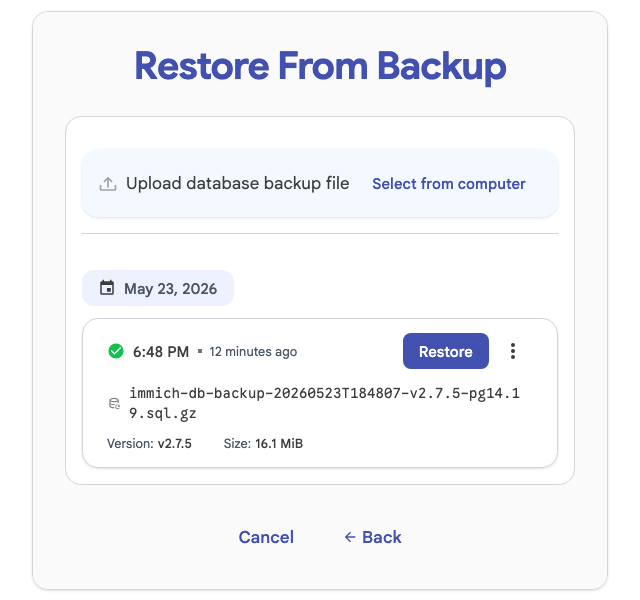
The final destructive restore confirmation was triggered through the same maintenance endpoint used by the web UI, after the browser flow had reached folder checks and backup selection.
The restore flow showed warnings for some folders:
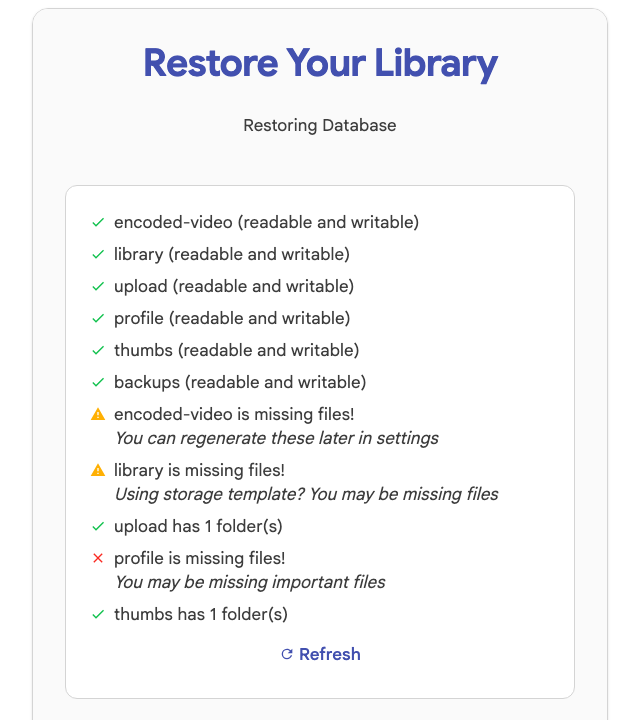
The folder checks flagged profile, library, and encoded-video as having missing content. Correct for this drill: those features were not used. On a real library with profile images, videos, external storage, or storage templates, the same warnings could mean actual missing data. Immich’s system integrity documentation explains what the folder checks look for.
What Passed
After the restore completed, the restored instance was checked rather than treating “the command returned” as enough.
The pass criteria:
| Check | Result |
|---|---|
| Immich services healthy after restore | Pass |
| Admin login works | Pass |
| Photo count matches expected dataset | Pass, 20 images |
| Albums restored | Pass, 2 albums |
| Album contents match expected count | Pass, 10 assets each |
| Original image retrieval works | Pass, JPEG 200 response |
| Preview image retrieval works | Pass, JPEG 200 response |
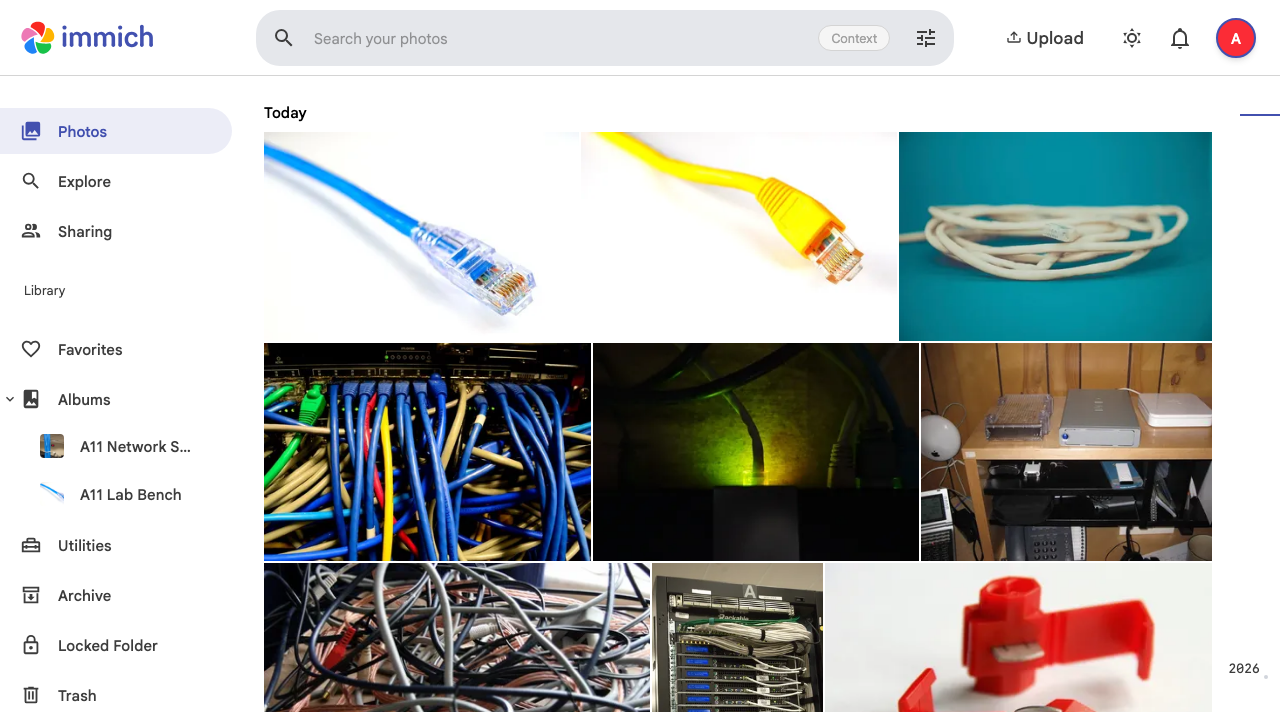
The restored library view also showed the expected lab media:
A backup you have never restored is a proposal. A backup that has restored once is evidence.
The Restore Checklist I Would Keep
For a small Immich deployment, keep the restore checklist short enough to run again. If your setup uses external libraries, storage templates, multiple users, mobile upload queues, or a different deployment method, include those things in the drill.
- Record the Immich version and deployment shape.
- Confirm where
UPLOAD_LOCATIONand database data live. - Trigger or capture a database backup.
- Stop writes if you can; if not, capture database first and filesystem second.
- Copy the full upload location unless you have already proven a narrower folder set.
- Restore into a clean target, not a half-reused app directory.
- Use Immich’s restore flow or the documented command-line route for your case.
- Check folder warnings before clicking through them.
- Verify login, asset count, album or metadata state, original retrieval, and preview generation or retrieval.
- Write down the awkward parts while they are still specific.
That last step is not admin theatre. The awkward parts are the restore procedure. If the backup filename pattern, folder checks, mount paths, version mismatch warning, or maintenance-mode login feels confusing in a calm lab, it will not become clearer because a real library is missing.
Make the drill part of the backup. The backup is not finished until the restored service opens the data you care about.